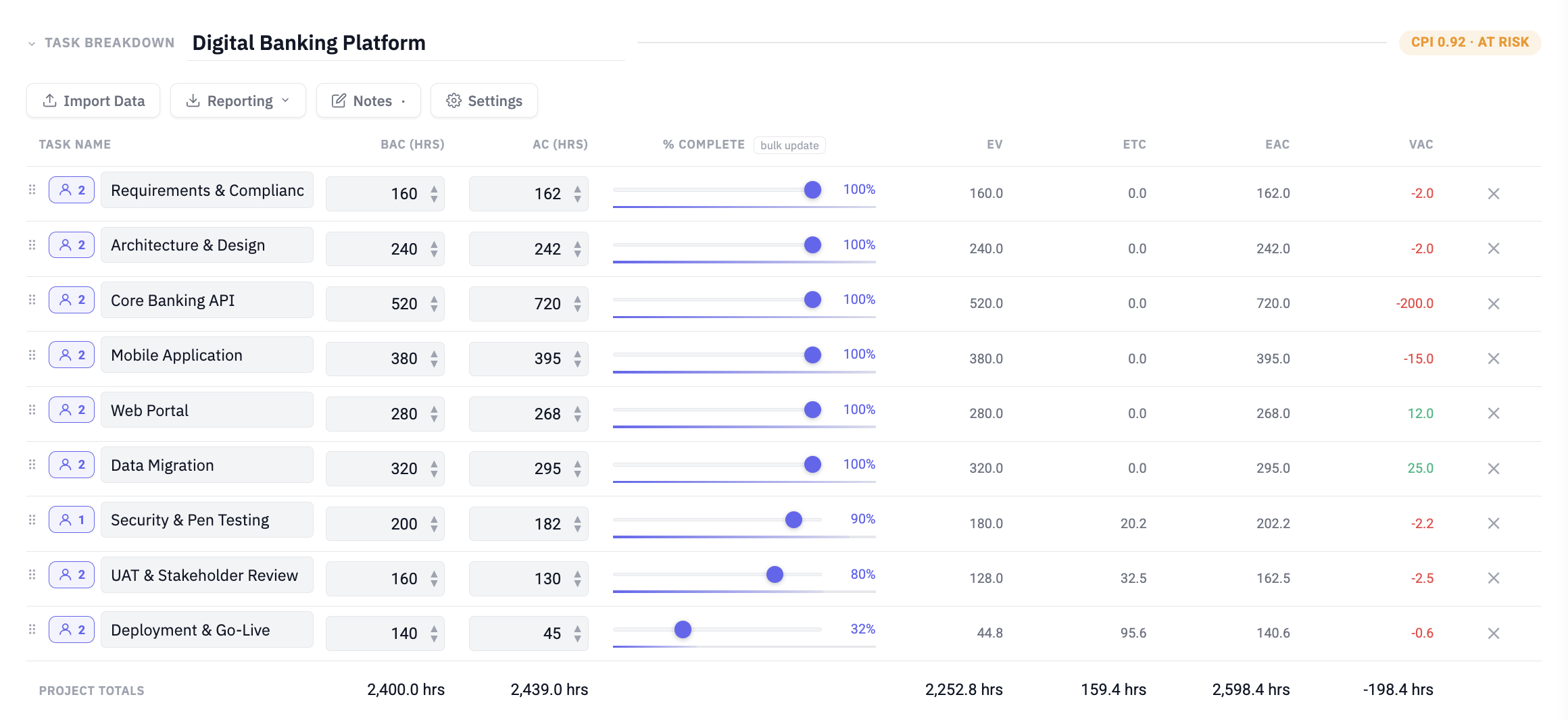
| Task Name | BAC (hrs) | AC (hrs) | % Complete | EV | ETC | EAC | VAC | |
|---|---|---|---|---|---|---|---|---|
| Project Totals | — | — | — | — | — | — |
| Task Name | BAC (hrs) | AC (hrs) | % Complete | EV | ETC | EAC | VAC | |
|---|---|---|---|---|---|---|---|---|
| Project Totals | — | — | — | — | — | — |
Finivo Sentinel is an Earned Value Management (EVM) tracker that monitors whether your projects are on budget by comparing planned work to actual costs.
Three steps to get started:
① Add tasks and set each task's BAC (Budget at Completion) — the total hours planned. You can type them manually or use ↑ Import Data to bring in tasks from a file.
② As work progresses, enter AC (Actual Cost — hours spent) and drag the % Complete slider. Use bulk update next to the % Complete header to update all tasks at once, optionally estimating % from your project start/end dates.
③ Sentinel computes your metrics live. Take a Snapshot to record the state at a point in time and build a trend history.
| Metric | Meaning |
|---|---|
| BAC | Budget at Completion — total planned hours |
| AC | Actual Cost — hours spent so far |
| EV | Earned Value — BAC × % Complete |
| CPI | Cost Performance Index — EV ÷ AC |
| CV | Cost Variance — EV minus AC |
| ETC | Estimate to Complete — hours still needed |
| EAC | Estimate at Completion — projected total cost |
| VAC | Variance at Completion — BAC minus EAC (positive = under budget). Shown with % of BAC. |
Key formulas:
EV = BAC × (% Complete / 100)
CPI = EV ÷ AC
ETC = (BAC − EV) ÷ CPI
EAC = AC + ETC
VAC = BAC − EAC
The Health Index is a colour-coded summary of your project's CPI.
| Status | CPI Range | Meaning |
|---|---|---|
| ON TRACK ▲ | ≥ 1.05 | Ahead of budget |
| NOMINAL | 0.95 – 1.05 | Within tolerance |
| AT RISK ▼ | 0.85 – 0.95 | Monitor closely |
| CRITICAL ✕ | < 0.85 | Corrective action needed |
The main panel is divided into foldable sections — click any section header to collapse or expand it:
Task Breakdown — the task table with BAC, AC, % Complete, and per-task EVM columns. Use the bulk update button next to "% Complete" to update multiple tasks at once (manually or by estimating from project start/end dates).
Forecasted Metrics — ETC, EAC, VAC cards plus AC, EV, CPI, and % Budget Used. Cost metrics appear when a cost-per-hour rate is set.
BAC vs AC — bar chart comparing planned budget to actual cost per task (indigo = BAC, red = AC).
BAC vs EAC — bar chart comparing budget to estimated final cost per task (indigo = BAC, amber = EAC).
Snapshots — three independently foldable sub-sections:
• Cost Trend · Per Task — grouped bar chart showing AC per task across all snapshots. Each snapshot gets a distinct colour. Click any bar to open a Task Trend modal for that task, showing its AC history across all snapshots as a line chart. Click a bar in the AC Delta row to see the delta (change since previous snapshot) for that task.
• Total AC · Progression — line chart of cumulative AC (red) and EV (blue dashed) over time. Toggle the EV line with the checkbox.
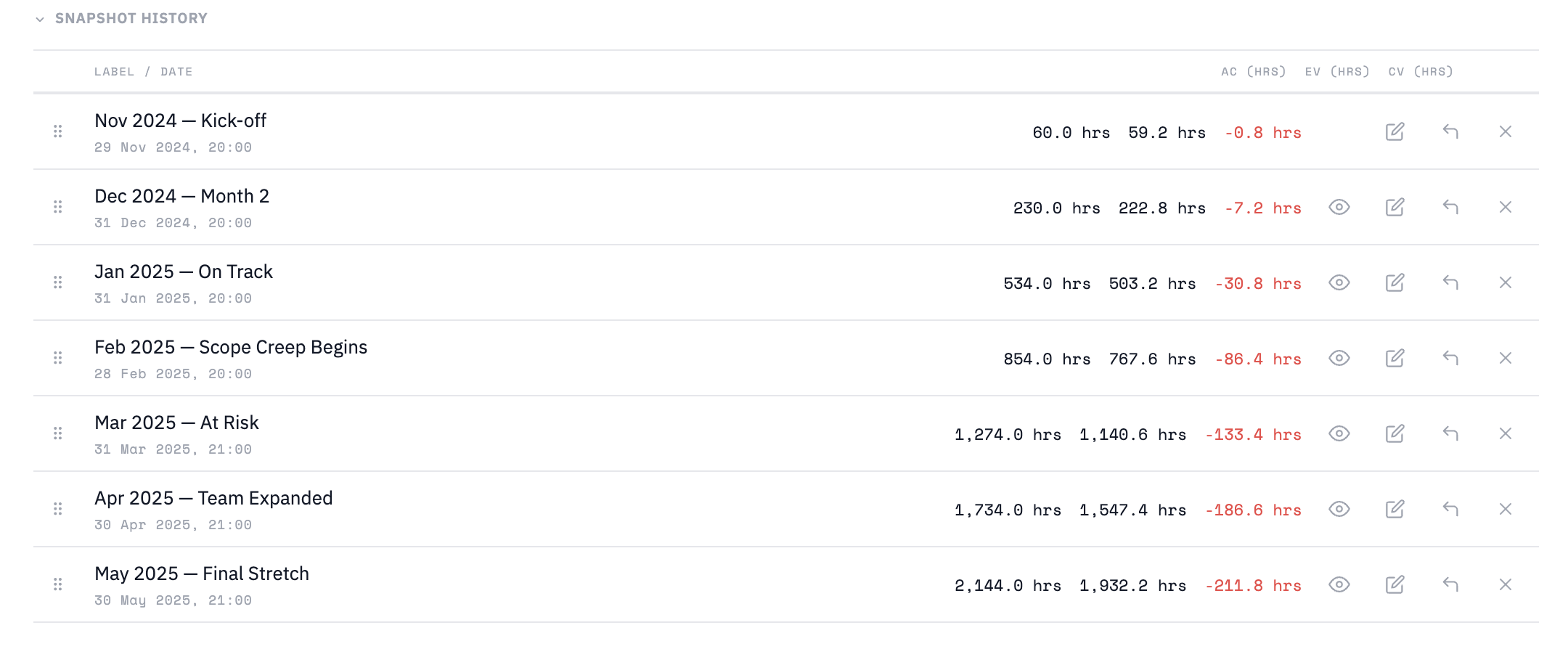
• Snapshot History — list of all snapshots with AC, EV, and CV (coloured green/red). Click ✎ to edit, ✕ to delete, drag ⠿ to reorder. Click the chart icon (⩃) on any snapshot row to open an AC Delta bar chart comparing that snapshot to the previous one.
A Snapshot records the project's EVM state at a moment in time. Take one after each reporting period to build a trend.
Creating a snapshot: click + Snapshot to open the modal. You can add an optional label, then either save the current state directly, or import AC values from a file:
• Time Entries — CSV/Excel with task, person, date, hours
• Timesheet — match people to assignees, sum hours to AC
• Tenrox Export — import from a Tenrox XLSX report
Comparing: click ⇄ Compare (appears with 2+ snapshots) to see a side-by-side delta table between any two snapshots.
Tip: set a Snapshot Reminder in Project Settings to get notified when you haven't taken one in N days.
Click ↑ Import Data in the project actions bar to open the import chooser with four options:
Tasks & Budget — paste task names (one per line, with optional BAC) or upload a CSV/Excel file. Existing tasks are matched by name; new ones are added.
Time Entries (Pro) — CSV/Excel with task, person, date, and hours columns. Sentinel auto-detects columns, creates tasks, assigns people, and generates monthly snapshots with cumulative AC.
Timesheet (Pro) — upload a file with person and hours columns. Sentinel matches people to existing task assignees and sums hours to set AC per task.
Tenrox Export (Pro) — drop a Tenrox XLSX report. Sentinel reads actual hours per task and applies them as AC values. Supports both single-period and multi-period imports.
The same import options are available when creating a new project or taking a new snapshot.
A Portfolio groups related projects. Use portfolios to separate clients, departments, or programmes.
Portfolio Metrics (Pro) — the collapsible panel at the top aggregates BAC, AC, EAC, VAC (with % of BAC), and CPI across all projects, with a per-project breakdown table. Export buttons (CSV, Excel Report) appear when expanded.
Sidebar toggle — click the small arrow on the sidebar divider line to collapse/expand the project list. The state persists across sessions.
Right-click any portfolio or project in the sidebar for options: rename, duplicate, move, archive/unarchive, share, save as template, or delete. Archived projects are hidden by default — click Show Archived at the bottom of the sidebar to reveal them.
Portfolio CSV Import (Pro) — when creating a new portfolio you can import an existing portfolio CSV export. This creates a new portfolio with all its projects and tasks intact, without overwriting anything.
Free plan: 1 portfolio, 2 projects. Pro: unlimited.
Global Settings (⚙ in topbar) — defaults for all projects: per-task analytics columns, assignee button visibility, portfolio panel, hours per day, cost per hour, CPI alert threshold.
Project Settings (⚙ in project actions) — override any global setting for a specific project: per-task analytics columns, assignee list, hours per day, cost per hour, snapshot reminder interval.
Project overrides take precedence over global defaults. Use Reset to Global to clear all project-level overrides. Use ⏱ View History to open the change log for that project.
Each task can have one or more Assignees — the people doing the work. Assignee buttons appear in the task row (enable them in Global or Project Settings).
Adding assignees: click the assignee button on any task row to open the popover. Type a name and press Enter or click + to add. Click ✕ next to a name to remove them.
Assignees are used by the Timesheet import to match people in your file to tasks in Sentinel, summing their hours as AC.
Each project has a Notes area for free-form text, decisions, and comments. Click ✎ Notes in the project actions bar to open it.
The editor supports bold, italic, underline, headings, bullet lists, and numbered lists via the toolbar. Notes are saved automatically with the rest of your project data.
When viewing a shared project with view-only access, the notes editor is read-only.
Tip: the Notes button shows a · indicator when notes contain content, so you can see at a glance whether a project has notes without opening the modal.
Templates let you save a project's task structure and settings so you can quickly start similar projects in the future.
Saving a template: right-click any project in the sidebar and choose Save as Template. Give it a name. The template stores the task list, BAC values, assignees, and project settings — but not AC values or snapshots.
Using a template: when creating a new project, switch to the From Template tab in the New Project modal. Select a template from the list and click Create from Template. You can delete saved templates from the same list.
Pro users can share any project with a colleague by email. The recipient gets a Shared with me section at the bottom of their sidebar.
Sharing a project: right-click the project in the sidebar and choose Share… (or click ↗ Share in the project actions bar). Enter one or more email addresses (comma-separated) and click Share. Recipients currently receive view-only access.
Revoking access: open the Share modal for the project, find the recipient in the Shared with list, and click the remove button next to their name.
As a recipient: shared projects appear in the Shared with me section of your sidebar. Click to open. All editing controls are disabled in view-only mode — you can still read metrics, snapshots, and notes. Use Duplicate into my projects (right-click the shared item) to make your own editable copy.
Projects you have shared with others show a subtle shared label next to their name in the sidebar.
The bell icon in the top bar opens the Notifications panel. Notifications are generated automatically when Sentinel detects project health issues.
CPI threshold alerts (Pro) — when a project's CPI drops below the threshold you set in Global Settings, Sentinel shows a notification the next time you open that project. Adjust the threshold in ⚙ Global Settings → CPI Alert Threshold.
Snapshot reminders — if you set a reminder interval in Project Settings, Sentinel notifies you when that many days have passed since the last snapshot, prompting you to record a new one.
A red badge on the bell counts unread notifications. Click Clear all inside the panel to dismiss them.
Sentinel automatically logs significant changes to each project — task additions, deletions, renames, BAC changes, and settings updates.
Viewing history: open ⚙ Project Settings and click ⏱ View History. Each entry shows a timestamp and a short description of what changed. The most recent 100 entries are kept per project.
The history button in the settings modal turns amber when there are new unseen entries since you last opened it.
CSV Export — download the current task table as a CSV file with all EVM values to 2 decimal places.
Excel Report (Pro) — generates a formatted .xlsx with four sheets: Summary (metrics + charts), Task Breakdown, Snapshot History, and Notes. VAC includes % of BAC throughout.
Portfolio Excel Report (Pro) — formatted .xlsx with Portfolio Summary (per-project metrics + totals), plus one sheet per project with full task breakdown. Available from the portfolio metrics panel.
Reports use the Netlify server-side generator for full formatting. If unavailable (e.g. local development), a client-side fallback generates the same data without chart images.
| Feature | Free | Pro |
|---|---|---|
| Portfolios | 1 | Unlimited |
| Projects | 2 | Unlimited |
| CSV export | ✓ | ✓ |
| Excel report | — | ✓ |
| Portfolio metrics & report | — | ✓ |
| Snapshot comparison | — | ✓ |
| Data imports (Time Entries, Timesheet, Tenrox) | — | ✓ |
| Sharing (view/edit) | — | ✓ |
| CPI threshold notifications | — | ✓ |
| Change history | — | ✓ |
| Templates | ✓ | ✓ |
| Price | €0 | €12.99/mo or €99/yr |
All shortcuts use Ctrl on Windows/Linux or ⌘ on Mac as the modifier key.
For bug reports, feature requests, or billing questions, contact us at [email protected].